
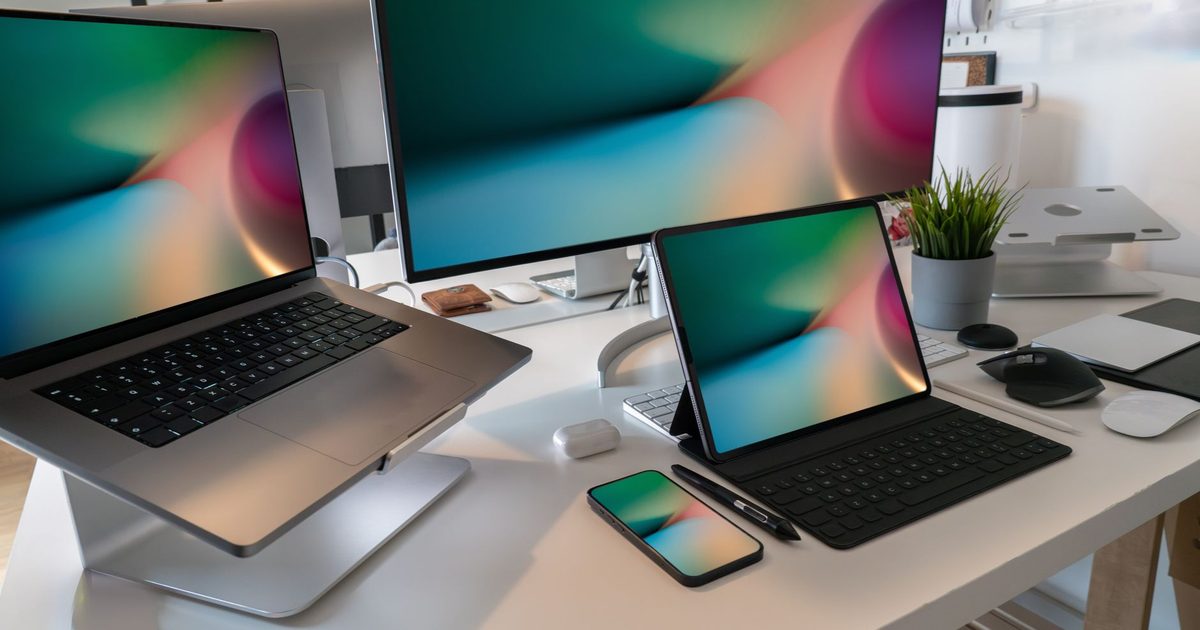
Mirror and extend are not the same thing
Connect a monitor and an iPad will happily show a picture, but that picture comes in two very different forms. The default is a mirror: the monitor shows a copy of the iPad's own screen, while touch, apps and everything else still happen on the tablet. Nothing moves across to the second panel; it just echoes what the iPad is already doing.
An extended display is the other mode, and it behaves differently. Apps open on the monitor as their own windows, you can drag them from one screen to the other, and the monitor runs at its own resolution instead of copying the iPad. Apple's iPad User Guide draws the line plainly: "Using an external monitor as a separate second screen requires an iPad with an Apple M-series chip, while other compatible iPads can mirror the display." So nearly every current iPad can put something on a monitor; only the M-series models can turn that monitor into extra space.
Which iPads can extend to a second screen
The extended-display mode rides on Stage Manager, which Apple limits to iPads with an M-series chip. On its Stage Manager support page (read October 2026, iPadOS 26) Apple lists the models that can move apps and windows to an external display: iPad Air 13-inch (M3), iPad Air 11-inch (M3), iPad Pro 13-inch (M4), iPad Pro 11-inch (M4), iPad Air 13-inch (M2), iPad Air 11-inch (M2), iPad Pro 12.9-inch (5th generation and later), iPad Pro 11-inch (3rd generation and later), and iPad Air (5th generation).
An iPad that is not on that list is not shut out; it will still mirror to a monitor perfectly well. It simply cannot use the screen as separate space. Apple updates this list with each iPadOS release, so check its current page rather than an older write-up when you are deciding whether a particular model will extend.
What to plug in, and how to switch modes
The connection is ordinary USB-C. An iPad with a USB-C or Thunderbolt port runs a single cable straight into a monitor that has a USB-C or Thunderbolt input; where the monitor only offers HDMI, you add a USB-C-to-HDMI cable or a hub with an HDMI port (Apple's guide names its own USB-C Display AV Adapter for this). The one requirement is that the cable or hub can carry video, not just power, and which USB-C cables manage that is a topic of its own, covered in the USB-C cable for a monitor explainer. For a hub that handles the display, the iPad Pro section of our USB-C hub for MacBook Air guide and the best USB-C to HDMI adapter guide have the picks.
Once connected, the iPad mirrors by default. To extend instead, on an M-series iPad turn Stage Manager on (Apple's path is Settings, then Multitasking & Gestures, then Stage Manager), then open Settings, then Display & Brightness, then Arrangement, where you choose mirroring or a separate display. On any other iPad there is no extend option to find, and the monitor stays a mirror.
FAQ
Q: Can I still use the iPad while it is showing on the monitor? A: Yes. While mirroring, the iPad's own touchscreen drives everything you see. In the extended mode on an M-series iPad, a connected keyboard and trackpad or mouse let you work across both screens, with a pointer that crosses from one to the other.
Q: Why does my iPad show black bars on the monitor? A: That is mirroring doing its job. A mirror has to keep the iPad's own proportions, which are closer to square than a widescreen panel, so the image is boxed in the centre with unused strips at the edges. Extending to a separate display on an M-series iPad fills the monitor properly, because each screen then draws at its own size.
Q: Do I need Stage Manager just to see my iPad on a monitor? A: No. Plain mirroring needs nothing switched on. Stage Manager is only for the extended second-screen mode, and only the M-series iPads run it that way.
Q: Will any USB-C cable or hub carry the picture? A: Only one built for video. A USB-C cable has to support DisplayPort Alt Mode, and a hub needs a live HDMI or DisplayPort output; a charge-only cable, or a hub with no video port, leaves the monitor blank.