
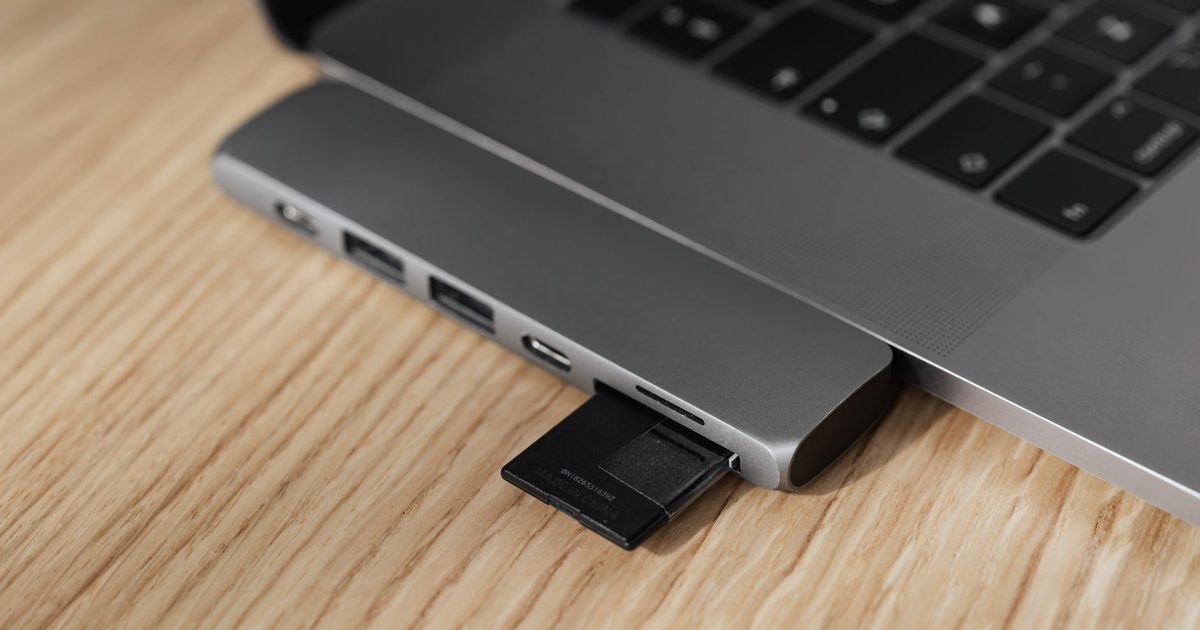
No card slot, but a reader fills the gap
No iPad has ever had a memory-card slot, so the card cannot go into the tablet itself. What goes in is a card reader: you slot the SD card into the reader, then connect the reader to the iPad's charging port. From there iPadOS treats the card like any other external drive. Apple's iPad User Guide puts it plainly: "You can use the Files app and other supported apps to access files stored on external devices, such as USB drives and SD cards, connected to your iPad." The same page names the hardware that does the connecting, "the Lightning to USB Camera Adapter, Lightning to USB 3 Camera Adapter, USB-C to SD Card Camera Reader, or Lightning to SD Card Camera Reader", all sold separately. Which one you need comes down to your iPad's port, and that is the last section below.
Two ways the card shows up: Files and Photos
A connected card appears in two different places, and knowing which one to open saves a lot of confusion.
The Files app is the general view. Open it and the card shows up as a location in the sidebar, next to iCloud Drive and On My iPad, so you can browse every folder, copy files off the card and move files onto it. This is the route for documents, music, a mix of file types, or photos you have already sorted into your own folders.
Photos is the camera route. Plug in a card that a camera wrote to and the Photos app can pull the shots straight into your library through an Import screen, where you tap Import All or pick individual frames first. Apple states the limit clearly: "Apple camera adapters can import only content that was captured by digital cameras." So a card full of PDFs or music will not appear on the Photos Import screen at all, though it still opens normally in Files.
The card has to be formatted a way the iPad understands
This is the trap behind most "my iPad will not see the card" complaints. Apple's iPad User Guide sets one firm rule for any external drive or card: "An external storage device must have only a single data partition, and it must be formatted as APFS, APFS (encrypted), macOS Extended (HFS+), exFAT (FAT64), FAT32, or FAT." A card straight out of a camera is normally exFAT or FAT32, so it mounts without fuss; a card split into two partitions, or formatted for something the list does not cover, will not show up. To change that, Apple says to reformat the card "using the Files app on iPad or a Mac or PC".
The Photos import route has its own compatibility list. Apple names the card types its camera readers accept, "SDSC, SDHC, miniSD, microSD, MMC, SDXC", and adds that "Flash or USB thumb drives aren't supported" for that import. A microSD counts, provided it sits in an adapter or a reader with a microSD slot. None of this touches how fast the copy runs, which is set by the card's UHS class and is covered in the UHS-I vs UHS-II explainer.
Match the reader to your iPad's port
The reader has to fit the iPad you own. Current iPads use USB-C, so an Apple USB-C to SD Card Camera Reader, or any USB-C card reader, plugs straight in. Older iPads use the Lightning connector and need a Lightning to SD Card Camera Reader, or one of Apple's Lightning camera adapters, instead. On the iPad Pro models with Thunderbolt or USB 4, Apple notes you can even chain several drives off the one port.
There is one practical catch with power. A reader draws what it needs from the iPad, so a simple reader with a single card is usually fine, while a hungry reader or a spinning hard drive can stall a smaller iPad. If you want a reader that also keeps the iPad charged while it works, picking one with a pass-through charging port is the job of the best USB-C SD card reader guide.
FAQ
Q: Does the SD card open in Files or in Photos? A: Both, for different jobs. Files shows the whole card as a browsable location for any file type, while Photos only offers its Import screen for pictures and videos that a camera recorded.
Q: Which reader do I need for my iPad? A: A USB-C reader for any current USB-C iPad, or a Lightning camera reader for an older Lightning iPad. Apple names both in its iPad User Guide, and they are sold separately.
Q: My iPad will not read the card, what is wrong? A: Usually the formatting. Apple only mounts a card that has a single data partition in a supported format such as APFS, HFS+, exFAT, FAT32 or FAT, so a multi-partition or oddly formatted card will not appear. For the Photos route, remember it imports only camera-captured shots.
Q: Can I use a microSD card on an iPad? A: Yes, in a microSD-to-SD adapter or a reader with a microSD slot. Apple lists microSD among the card types its camera readers accept.