
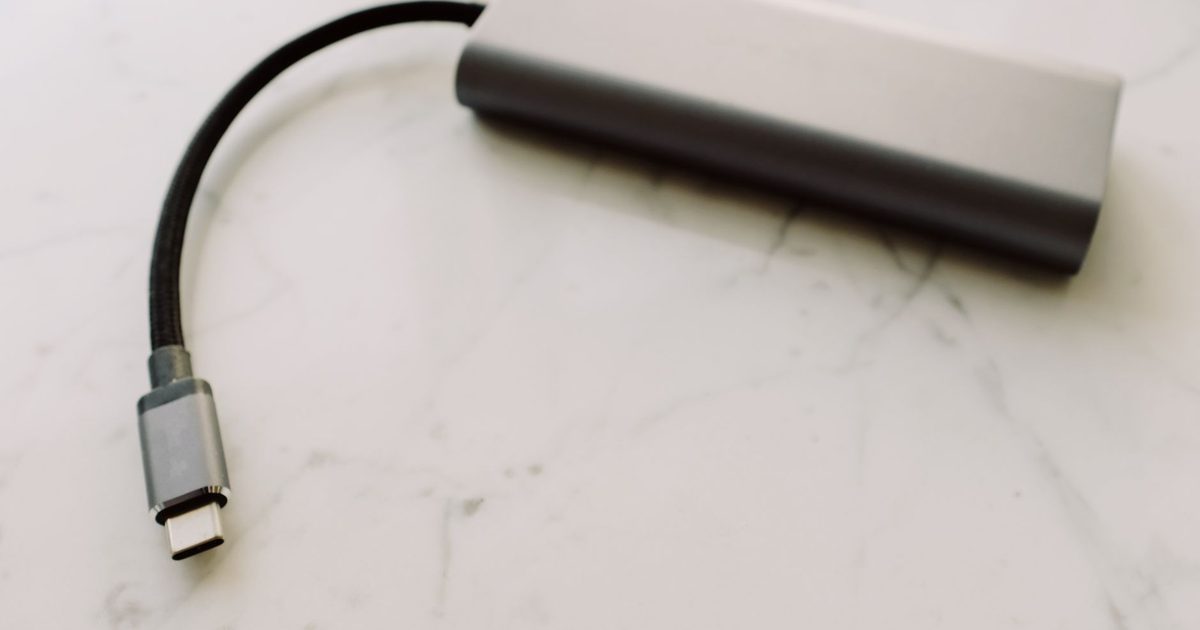
The tell: it charges, but the screen says no signal
If the laptop or phone keeps charging through the adapter, or clearly reacts when you plug it in, while the TV or monitor sits on "no signal", the adapter is probably fine. A healthy charge only proves the power side of the connector works; it says nothing about whether that port was ever going to send a picture. So check the port before you buy another adapter.
Does your USB-C port even output video?
Video over USB-C is an optional extra. The DisplayPort standards body describes it as "the Alternate Mode Functional Extension of the USB Type-C interface": the port sends a DisplayPort signal and the adapter converts it. The same body lists HDMI 2.0 with CEC among the outputs reached "using plug adapters or adapter cables". Because it's optional, not every USB-C port has it, and no adapter can create a signal the port doesn't send.
To check yours, look up your exact laptop or phone model. A USB-C port listed with DisplayPort, "DP Alt Mode", Thunderbolt 3 or 4, or "video out" can drive a screen; one that lists only USB data speeds and charging usually can't. Apple sets the same rule for its own machines: "the adapter must be compliant with DisplayPort Alt Mode, Thunderbolt 3, or Thunderbolt 4." If the spec sheet says nothing about video, treat the port as the suspect.
The adapter has to be a video adapter, used within its limits
Two adapter faults are common. The first is the wrong kind of accessory: a USB-C data dongle, or a hub whose maker never claims video, won't pass a picture. For an HDMI screen Apple points to "the Apple USB-C Digital AV Multiport Adapter or other USB-C to HDMI adapter or cable", meaning something built to carry a display signal, not whatever USB-C accessory was in the drawer.
The second is asking for more than the adapter can carry. Each adapter lists a maximum resolution and refresh rate, and a screen set above that can go black, drop out or stick at the wrong resolution. If a 4K TV shows nothing, compare the adapter's stated limit with what the TV is being asked to display before you write the adapter off.
When the port and adapter both check out
Many dead screens are a connection that didn't finish setting up, not a hardware fault. Work through these in order:
- Unplug both ends and plug them back in firmly. USB-C video setup can fail silently on the first connection, and a clean reconnect often brings the picture straight up.
- Switch the screen to the matching input. A TV has to be on the exact HDMI number the lead is in, and it doesn't always pick it automatically.
- Update the graphics driver or the operating system. A Windows graphics driver or a system update can knock out an external display on a port that worked last week, and a fresh driver often brings it back.
- Try another HDMI lead. A loose or damaged lead between the adapter and the screen causes the same flicker or dropout.
If a trusted adapter and HDMI lead still fail on a port that's spec'd for video, the last suspect is the USB-C cable feeding the adapter. Our guide to which USB-C cables carry video shows how to tell a video lead from a charge-only one.
So is it the adapter or the port?
If the port's spec doesn't promise DisplayPort or Thunderbolt, a different adapter won't help. If it does, and a known-good HDMI lead on the right input still gives nothing, the adapter or its resolution limit is the likely culprit, and a proper video adapter fixes it: our USB-C to HDMI adapter guide covers models built to pass a signal rather than just charge. For a screen that takes DisplayPort instead of HDMI, the USB-C to DisplayPort adapter guide is the matching page.
FAQ
Q: Do I need an active or a powered USB-C to HDMI adapter? A: Usually not. What matters is that it's a real video adapter rather than a data-only dongle. An active or powered adapter won't rescue a port with no video output.
Q: My adapter works on one laptop but not another. Why? A: That's the clearest sign the fault is the port. One laptop's USB-C port supports DisplayPort Alt Mode and the other's is data-and-charge only, so the same adapter gives a picture on one and nothing on the other. It's the device that differs, not the dongle.